How to Use
Complete guide to mastering the Meeting Assistant Tool. Follow our step-by-step instructions to make the most of every feature.
Available on Android, iOS, Huawei, and as the Web App in your browser
Step 5 of 10
Voting Features
Set up voting questions, participate in live voting, and view results.
Setting Up Voting Questions
- When creating or editing a meeting, tap "Voting"
- You'll see the "Voting Setup" screen
- For each question you want to add:
- Enter the question text in the "Name of Question/Vote" field
- Use the paperclip icon to attach additional details or documents
- Use the trash icon to remove a question
- Tap the "+" icon in the header to add more questions
- Tap "Done" when all questions are set up
Voting Question Tips:
- Be clear and specific
- One question per voting item
- You can add multiple questions for different topics
- Attach supporting documents if needed
Opening and Closing Votes
During a Meeting (organiser):
- Open the meeting and go to Voting
- Tap "Open Voting Control"
- Open questions one at a time, or tap "Open All Questions"
- Watch participation as attendees vote
- Close each question when its vote is done, or tap "Close All Votes"
Vote Status:
- Not opened: Voting has not started on this question
- Open: Attendees can vote
- Closed: Voting on the question has ended
Participating in Live Voting
Attendees who RSVP'd "Yes" can vote.
- When a question is open, open the meeting and go to Voting
- You'll see the open question with its text and any attachments
- You'll see voting options:
- Yes: Vote in favor
- No: Vote against
- Abstain: Choose not to vote
- Select your choice
- Your vote is recorded immediately
- You can change your vote while the question is still open
Viewing Voting Statistics
- After votes are closed, open the meeting
- Navigate to voting results or statistics
- You'll see results for each question showing:
- Yes: Count and percentage (green)
- No: Count and percentage (red)
- Abstain: Count and percentage (gray)
- Use the download icon to get the voting results as a PDF
Understanding Results:
- Percentages show distribution of votes
- Counts show actual number of votes
- While voting is open, the organiser sees how many people have voted
- Results are available once voting closes
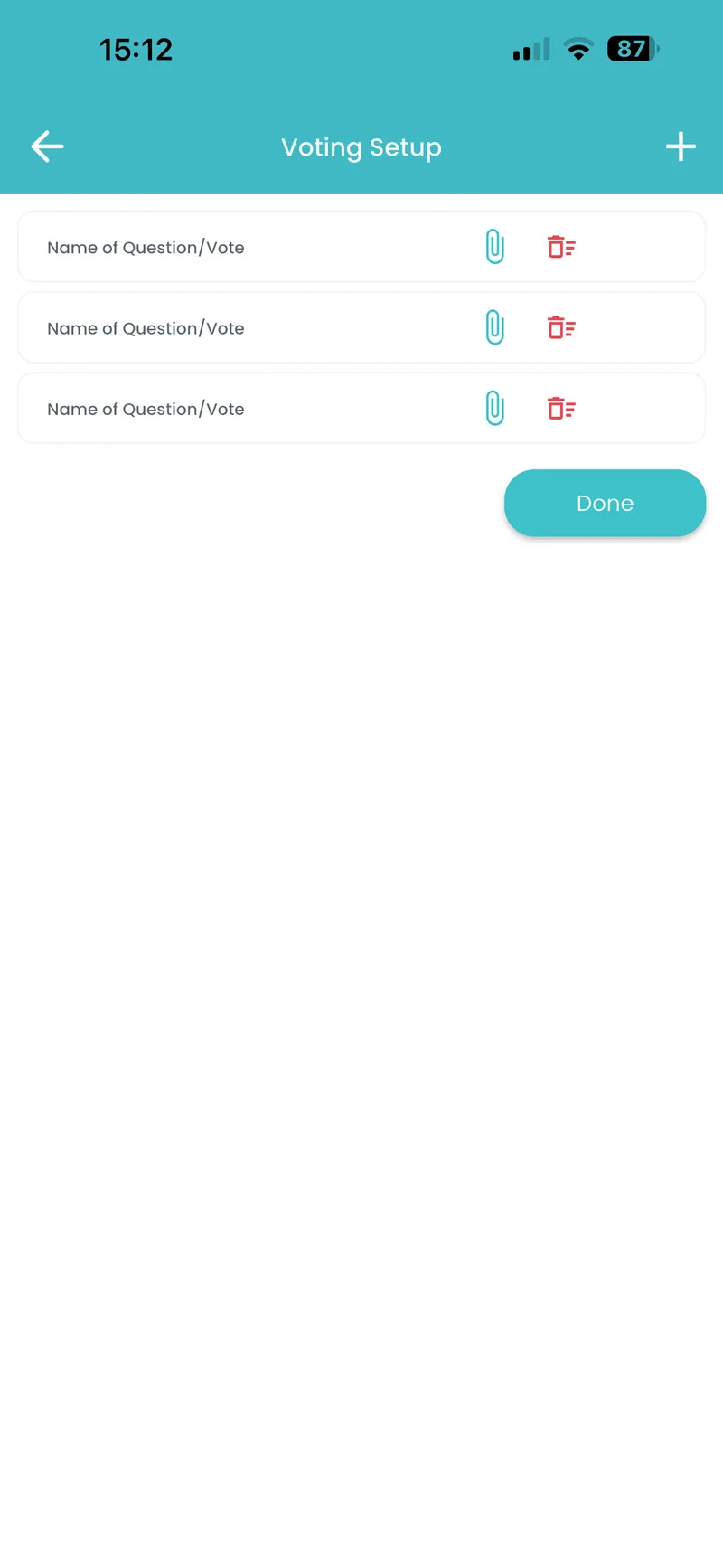
Voting Setup Screen
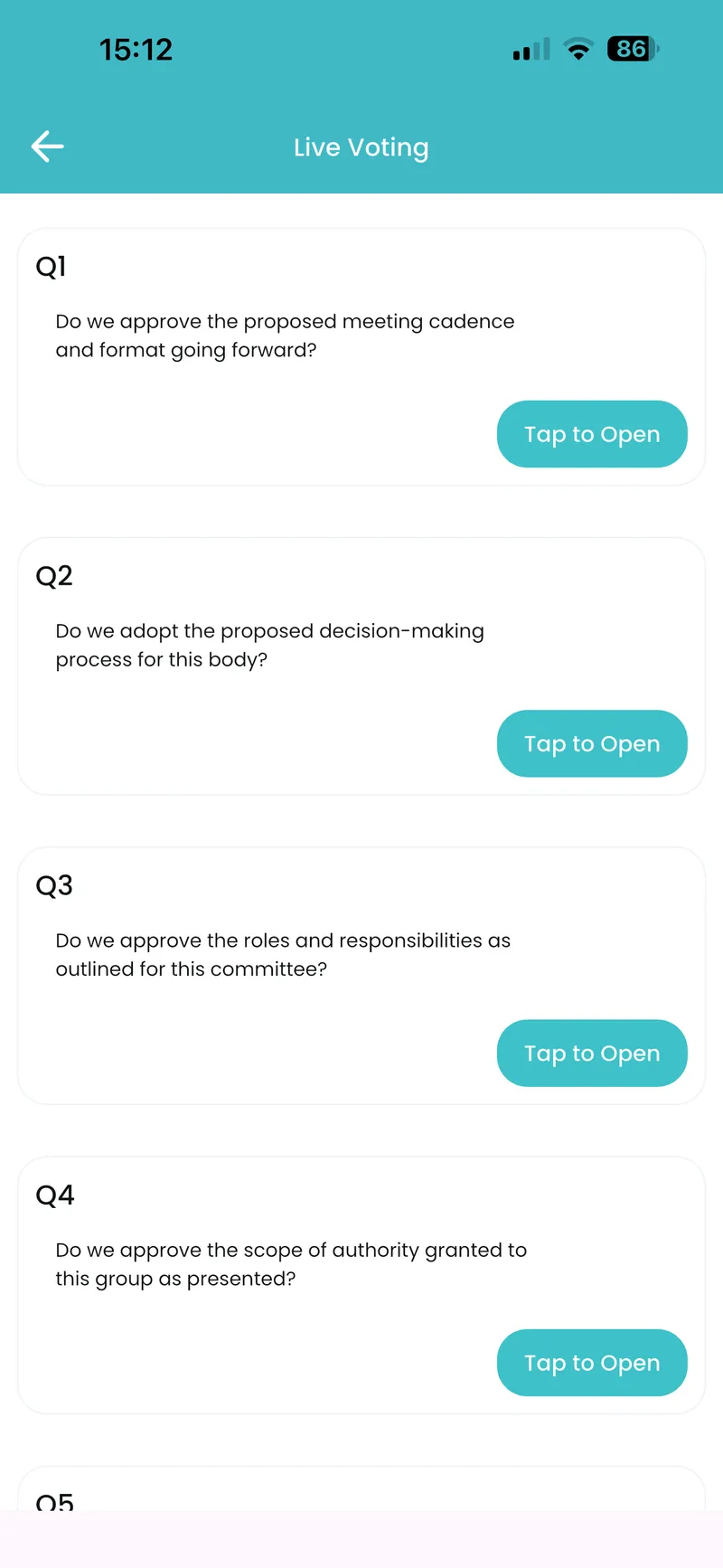
Live Voting Screen
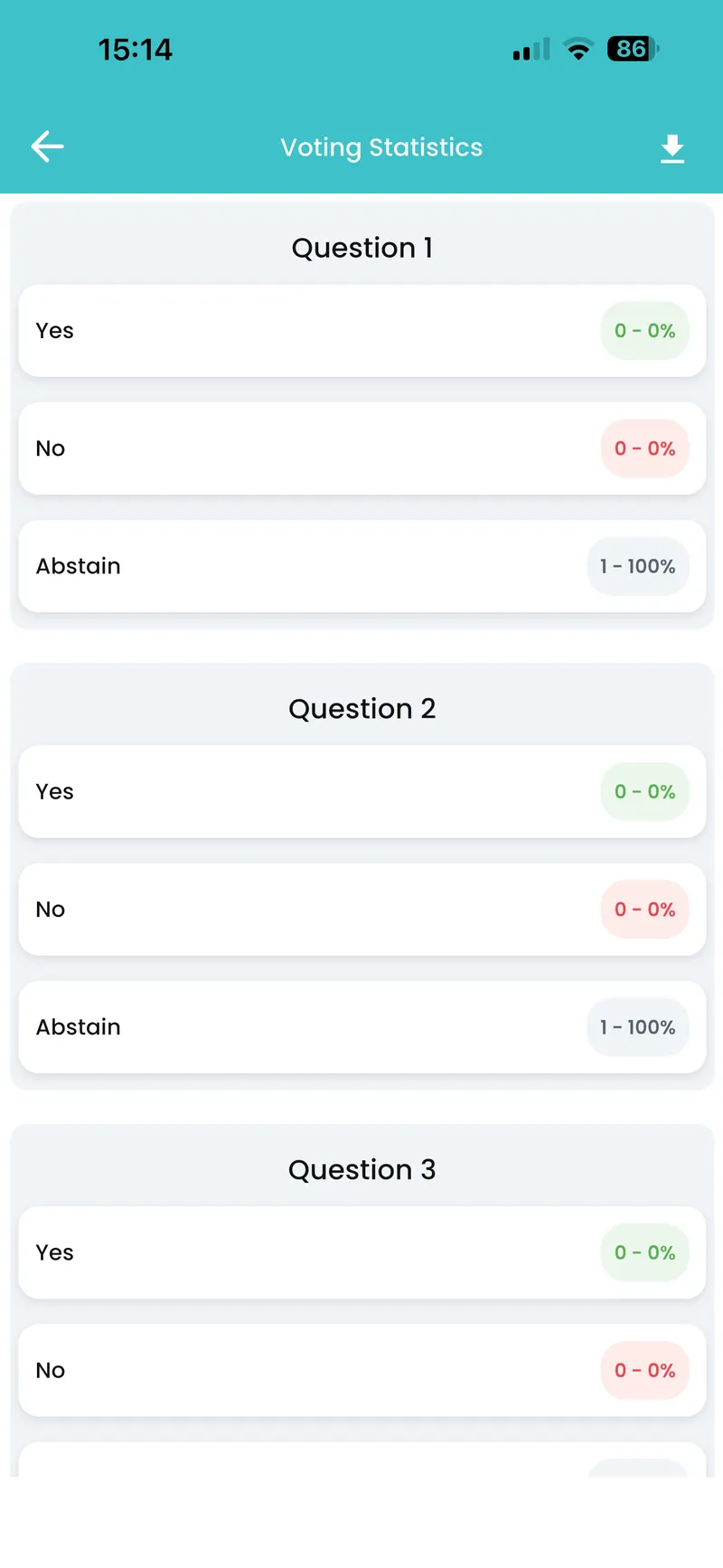
Voting Statistics Screen