How to Use
Complete guide to mastering the Meeting Assistant Tool. Follow our step-by-step instructions to make the most of every feature.
Available on Android, iOS, Huawei, and as the Web App in your browser
Step 9 of 10
Notifications and Alerts
Understand and manage notifications for meetings and updates.
Understanding Notifications
MAT sends notifications to keep you informed about:
- Upcoming meetings: A reminder 10 minutes before a meeting you said "Yes" to, and another when it starts
- New meetings: When you're invited to a meeting
- Changes and cancellations: When a meeting you're on is updated or cancelled
- Meeting started or ended: When the organiser starts or ends a meeting early
- Reminders from the organiser: For example, to answer an invitation
- Recording started: When the organiser starts recording a meeting you're on
Viewing Notification History
- Tap the bell icon in the top right (red badge shows unread count)
- You'll see the "Notification History" screen
- Notifications are organized chronologically (newest first)
Notification Types
"Upcoming meeting soon!"
- Shows before a meeting starts
- Message: "Voting starts soon. Tap to join."
- Timestamp shows when notification was sent
- Tap to join the meeting or voting session
"Meeting Started"
- Sent when a meeting begins
- Shows meeting name (e.g., "The Estates Council")
- Message: "Tap to join."
- Tap to enter the active meeting
"New meeting created"
- Sent when you're invited to a meeting
- Shows meeting name
- Message: "You've been invited to a meeting", with a prompt to view the details and RSVP
- Tap to see meeting details and RSVP
Managing Notifications
Viewing Details:
- Tap any notification to:
- Join a meeting
- View meeting details
- RSVP to invitations
- Access voting sessions
Notification Timestamps:
- "a moment ago": Very recent
- "X minutes ago": Recent activity
- "X days ago": Older notifications
- Helps you prioritize which actions to take
Notification Settings
Enable/Disable Notifications:
- Go to your device settings
- Find MAT in your app list
- Toggle notifications on or off
- Customize notification types if available
In-App Notification Preferences:
- In the Web App, allow notifications when your browser asks (some browsers don't support them)
Best Practices
- Check regularly: Review notifications to stay updated
- Act promptly: RSVP to meetings as soon as possible
- Join on time: Use "Tap to join" when meetings start
- Enable important alerts: Keep critical notifications active
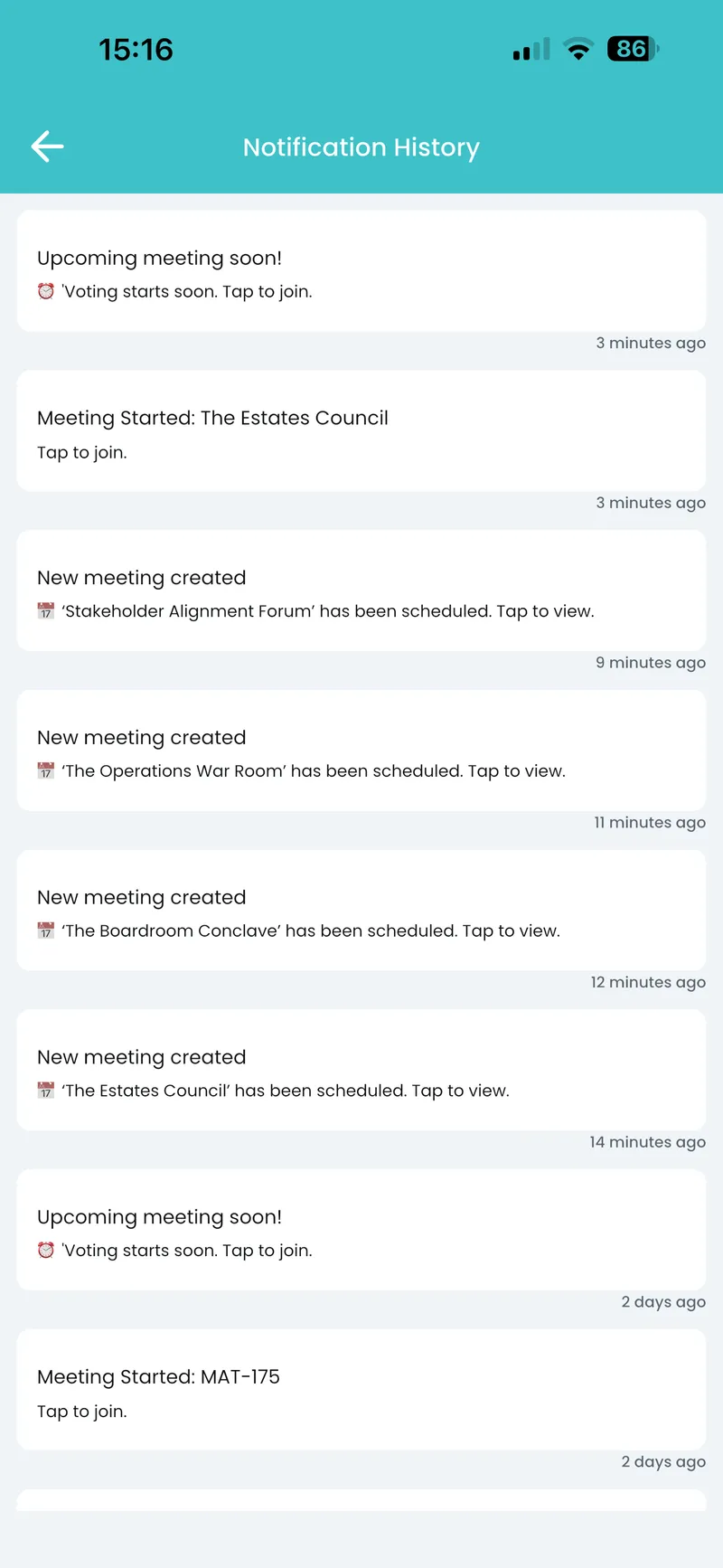
Notification History Screen