How to Use
Complete guide to mastering the Meeting Assistant Tool. Follow our step-by-step instructions to make the most of every feature.
Available on Android, iOS, Huawei, and as the Web App in your browser
Step 2 of 10
Creating and Managing Meetings
Learn how to create new meetings, set details, and manage existing meetings.
Creating a New Meeting
- From the Meetings screen, tap the floating action button (circular "+" icon) in the bottom right
- You'll see the "Create New Meeting" screen
Basic Meeting Information:
- Meeting Title: Enter a descriptive title in the "Enter meeting title..." field
- Start Time: Tap "Select start time" to choose when your meeting begins
- Duration: Tap the "Duration 1h" button to set meeting length (default is 1 hour)
- End Time: Tap "Select end time" to set when your meeting ends
- Description: Enter details about the meeting in the "Enter description..." field
Meeting Type:
- Virtual: Tap "Virtual" for online meetings. Add your own meeting link, or leave it blank and MAT creates a Google Meet link
- In Person: Tap "In Person" for physical location meetings
- If "In Person" is selected, search for the venue to add its address
Additional Options:
Tap any of these options to configure:
- Attendees: Add people to your meeting
- Attachments: Upload files related to the meeting
- Quorum: Set the quorum as a percentage of the attendees (MAT counts the Yes RSVPs against it)
- Voting: Set up voting questions for the meeting
- Once all details are set, tap "Create" at the bottom to save your meeting
Viewing Meeting Details
- From the Meetings screen, tap any meeting card
- You'll see the full meeting details including:
- Date & Time
- Description
- Location (Virtual or In Person with address)
- Attachments count
- RSVP status
- Other meeting options
Meeting Actions:
- Edit Icon (pencil): Tap to modify meeting details
- More Options (three dots): Access additional meeting actions
- Voting: Opens the meeting's voting, where the organiser taps "Open Voting Control" to run it
- Start Meeting Now: Begin the meeting early; attendees are told by email and push notification
- End Meeting Now: End the meeting early
Editing Meetings
- Open the meeting you want to edit
- Tap the pencil icon in the top right
- Modify any details:
- Change title, time, or description
- Update location or meeting type
- Modify attendees, attachments, quorum, or voting
- Save your changes
RSVP to Meetings
- Open a meeting you've been invited to
- Scroll to the "RSVP" section
- Tap your response:
- Yes: Confirm attendance
- No: Decline the invitation
- Maybe: Indicate tentative attendance
- Your response is saved automatically
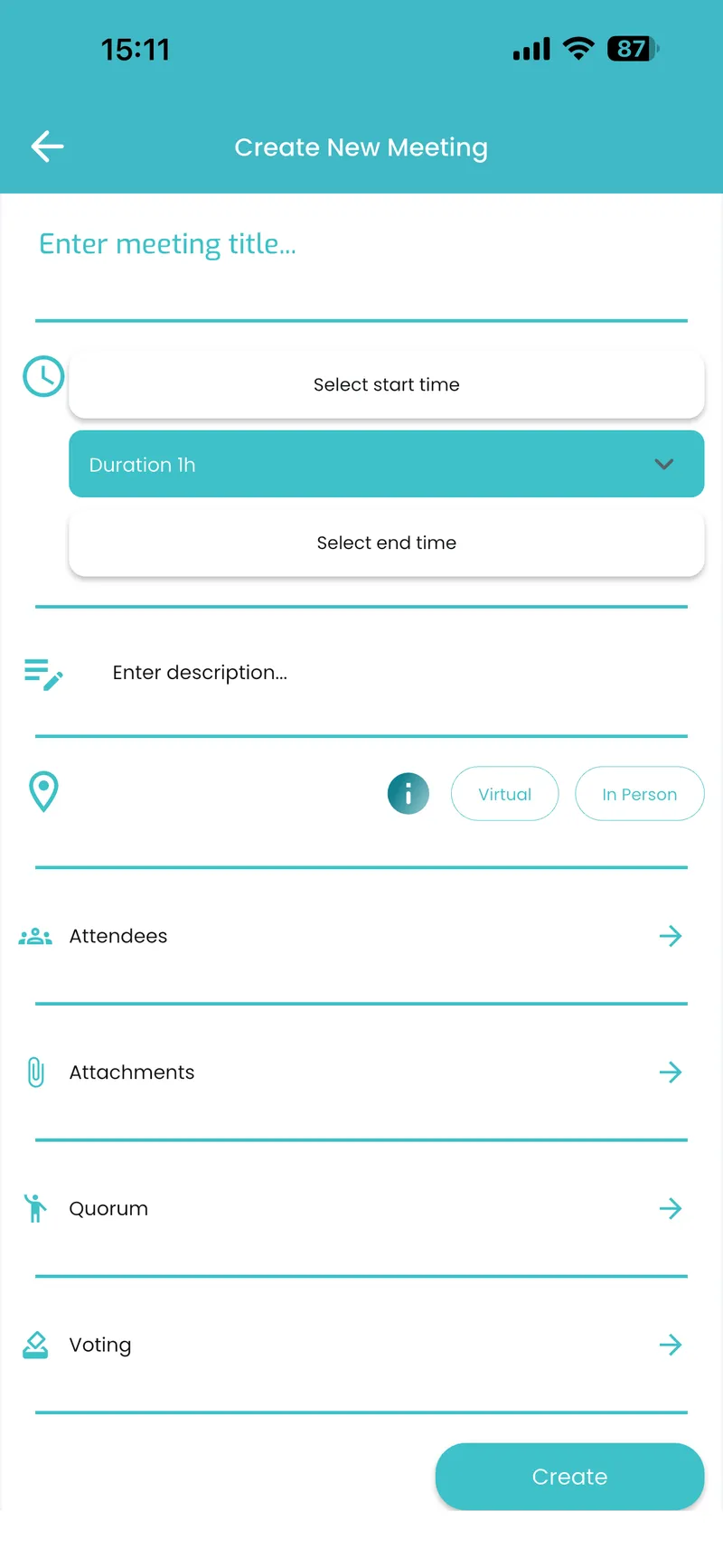
Create New Meeting Screen
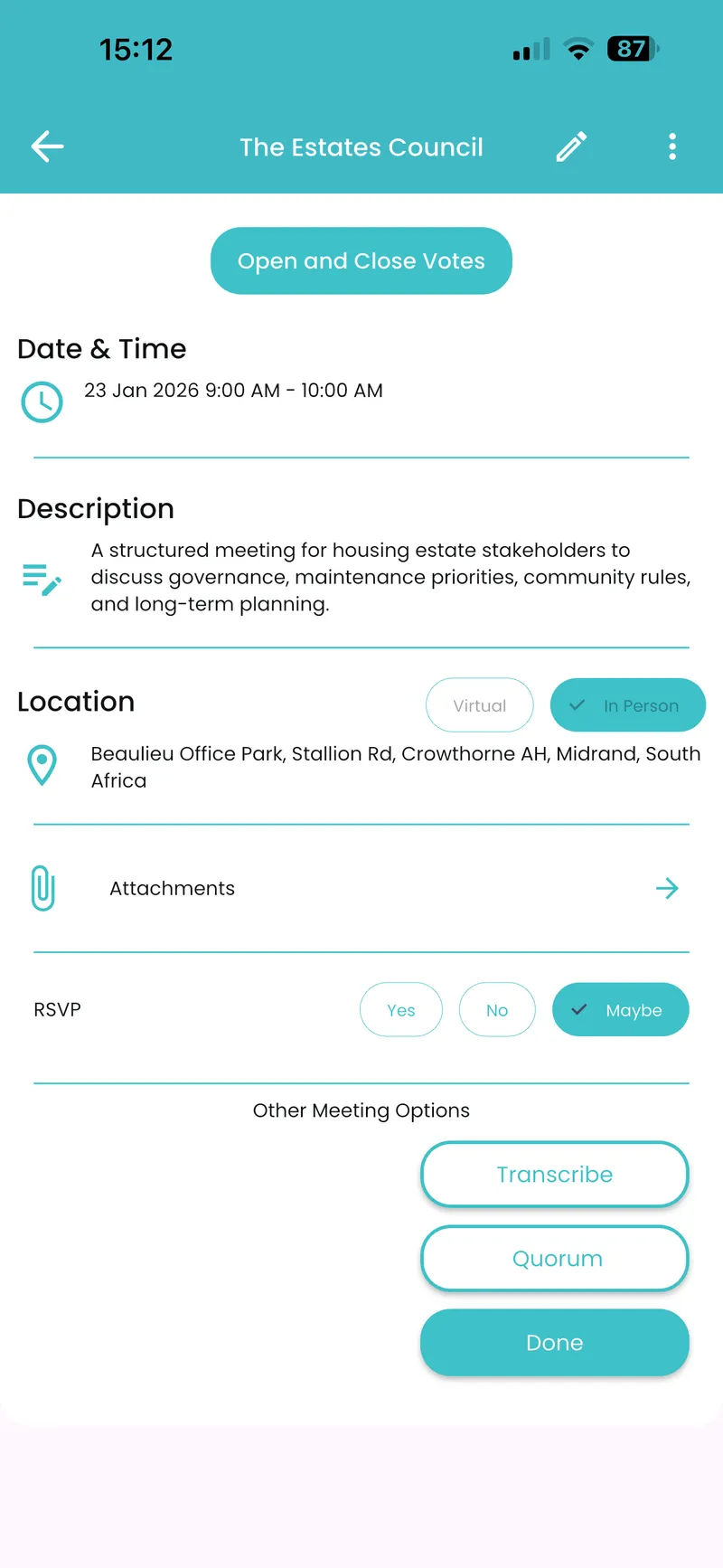
Meeting Details Screen
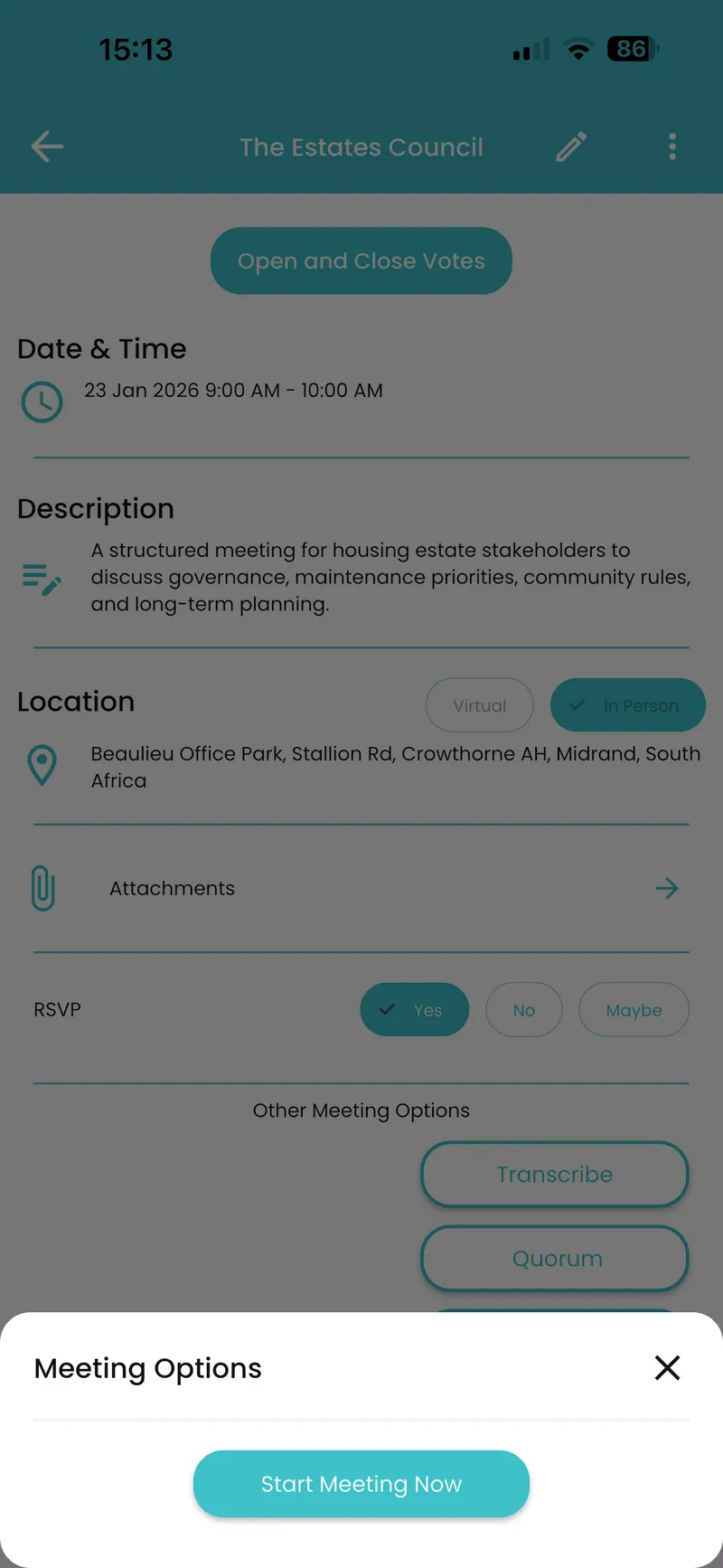
Meeting Options Menu