How to Use
Complete guide to mastering the Meeting Assistant Tool. Follow our step-by-step instructions to make the most of every feature.
Available on Android, iOS, Huawei, and as the Web App in your browser
Recording and Transcription
Record meetings or upload audio, then get the transcript, a summary, minutes and FAQs.
Where Recordings Live
Each meeting has a Recordings section. Only the meeting's organisers see it: they record, transcribe and share.
Quick start: tap "Record now" on the home screen to start a meeting and its recording in one tap, for any meeting or event.
Recording Live Meetings
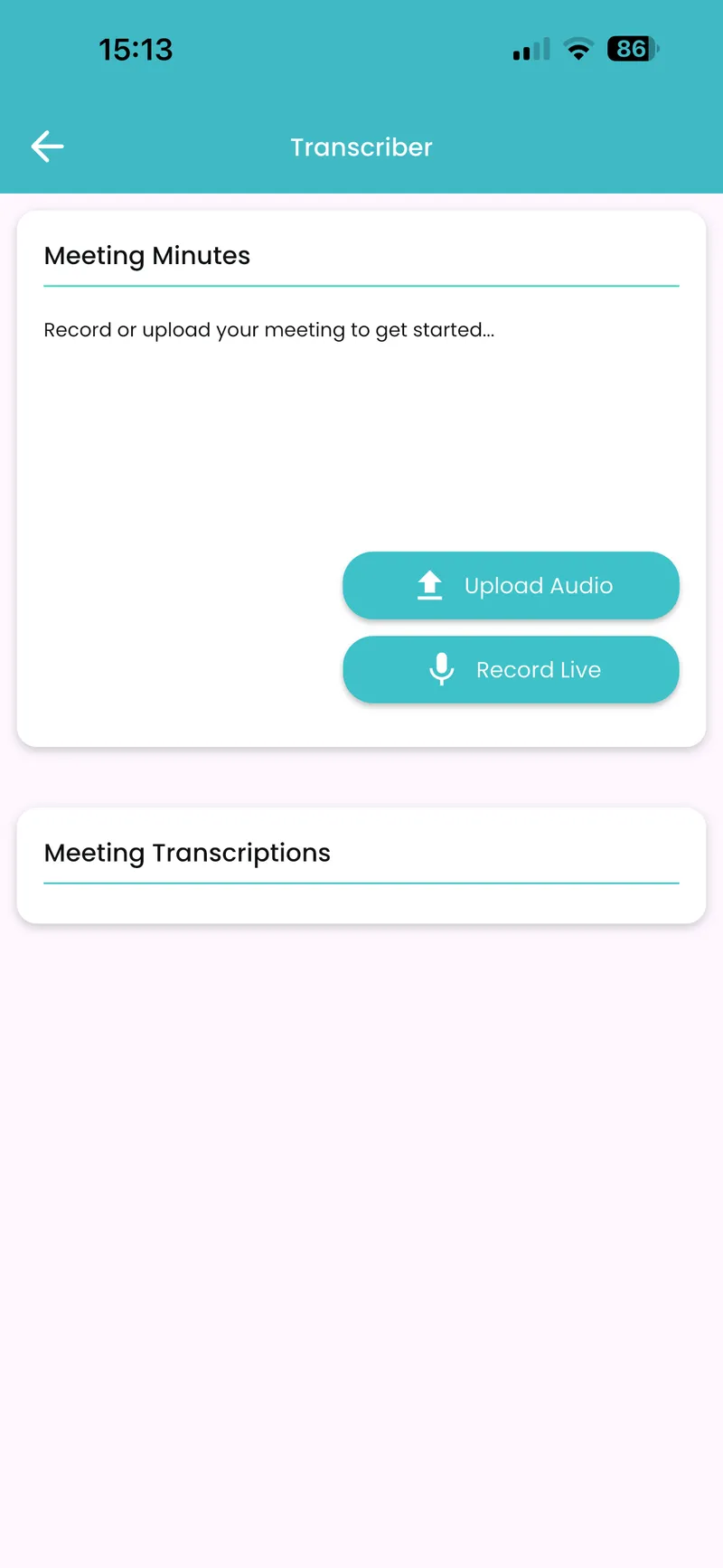
- Open the meeting and go to Recordings
- Tap "Record Live"
- Grant microphone permission if prompted
- The recording starts; pause and resume as needed. On a phone, it keeps recording in the background
- When the meeting ends, tap "Stop & transcribe"
- MAT transcribes the recording, and the transcript appears in the meeting's Recordings
Attendees get a notification when a recording starts.
Recording Tips:
- Place the phone or computer close to the speakers
- Minimise background noise
- Speak clearly and at a moderate pace
Uploading Audio Files
- Open the meeting and go to Recordings
- Tap "Upload Audio"
- Select an audio file from your device (common formats such as MP3, WAV and M4A)
- MAT uploads it and starts transcribing automatically
Languages
MAT transcribes all 11 of South Africa's official spoken languages: English, Afrikaans, Ndebele, Pedi, Sotho, Swazi, Tsonga, Tswana, Venda, Xhosa and Zulu. The transcript is in English.
Summaries, Minutes and FAQs
- In the meeting's Recordings, find the recording once its transcript is ready
- Tap "Generate summary" on it for an AI summary of the meeting
- Tap "Generate minutes" on it for AI-written minutes
- On the meeting's FAQs screen, tap "Generate FAQs" for questions and answers drawn from the transcript
Every meeting's FAQs screen also shows its facts for everyone on the meeting: who's coming, where, how long, and how the votes went.
Sharing
Share the transcript, the summary or the minutes as a PDF, a Word document, or both in a zip file. On a phone this opens the share sheet; in the Web App the file downloads.
Best Practices:
- Review the transcript, summary and minutes before you share them
- Test the audio before important meetings
Recordings Screen