How to Use
Complete guide to mastering the Meeting Assistant Tool. Follow our step-by-step instructions to make the most of every feature.
Available on Android, iOS, Huawei, and as the Web App in your browser
Quorum Management
Understand and manage meeting quorum requirements and attendance.
What is Quorum?
Quorum is the minimum number of attendees required for a meeting to be valid. MAT tracks it from the RSVPs, so you know before the meeting whether enough people have said they're coming.
Setting Up Quorum
- When creating or editing a meeting, find the quorum settings
- Switch on "Quorum required"
- Enter a "Quorum percentage" between 0 and 100
- Example: 50% means at least half of invited attendees must RSVP "Yes"
- Example: 75% means three-quarters must RSVP "Yes"
- Save the meeting
Quorum Options:
- 0%: No quorum requirement (default)
- 1-100%: Custom percentage requirement
- Quorum is calculated based on total invited attendees
Viewing Quorum Status
As the organiser, open the meeting's attendees. The quorum ring shows the percentage of "Yes" RSVPs against the quorum you set, with "Quorum met" or "Not yet met". The meeting screen shows the same status.
Sending Reminders
On the attendees screen, filter by response, then:
- Send reminder: To attendees who said "Yes"
- Remind pending: To attendees who said "Maybe" or haven't answered
- Ask to reconsider: To attendees who said "No"
Each reminder goes out by email and as a push notification. Attendees who said "Yes" also get automatic push reminders 10 minutes before the meeting starts and when it starts.
Understanding Quorum Calculations
- Quorum is based on total invited attendees
- Only "Yes" responses count toward current attendance
- "Maybe" responses do NOT count toward quorum
- "No" responses don't count toward quorum either
- The status updates as responses come in
- Quorum counts RSVPs, not who actually turns up on the day
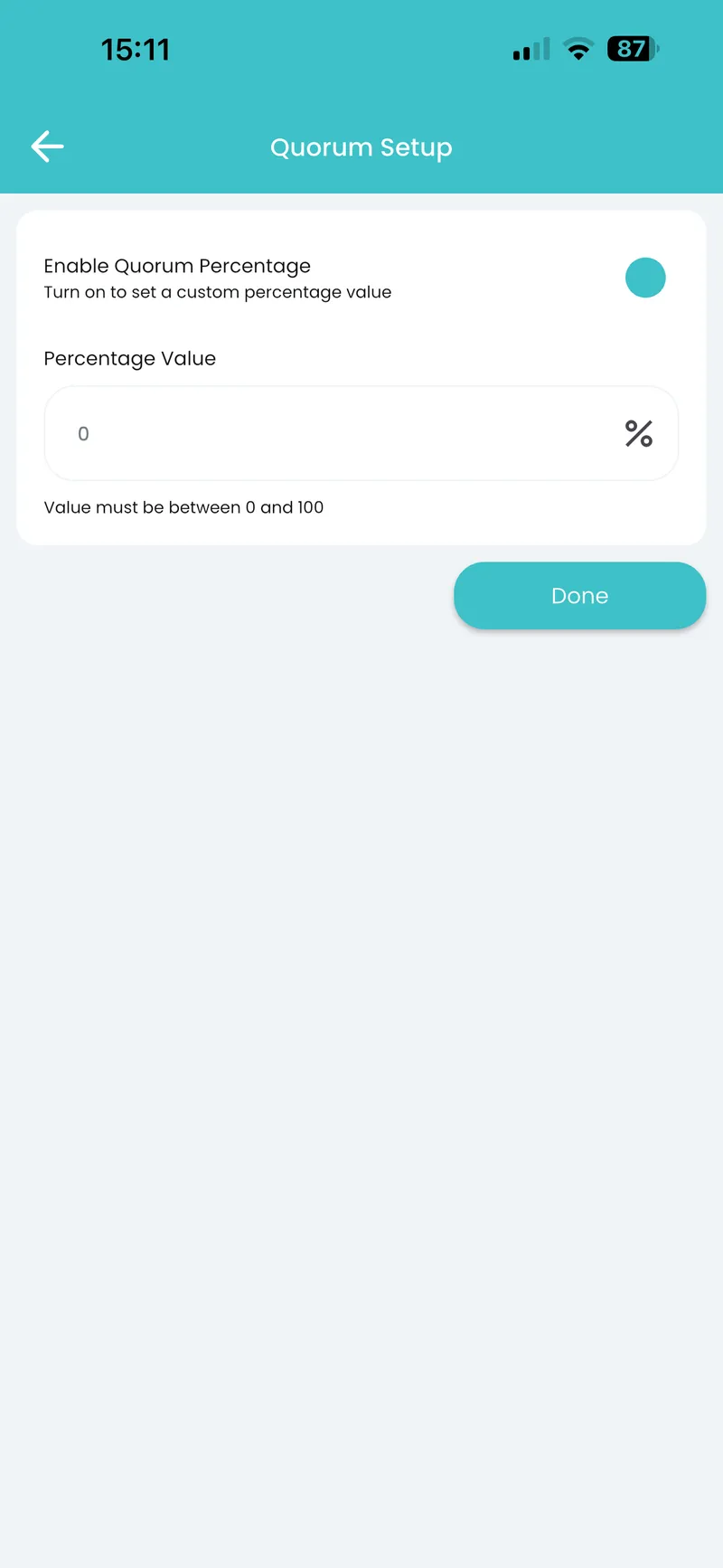
Quorum Setup Screen
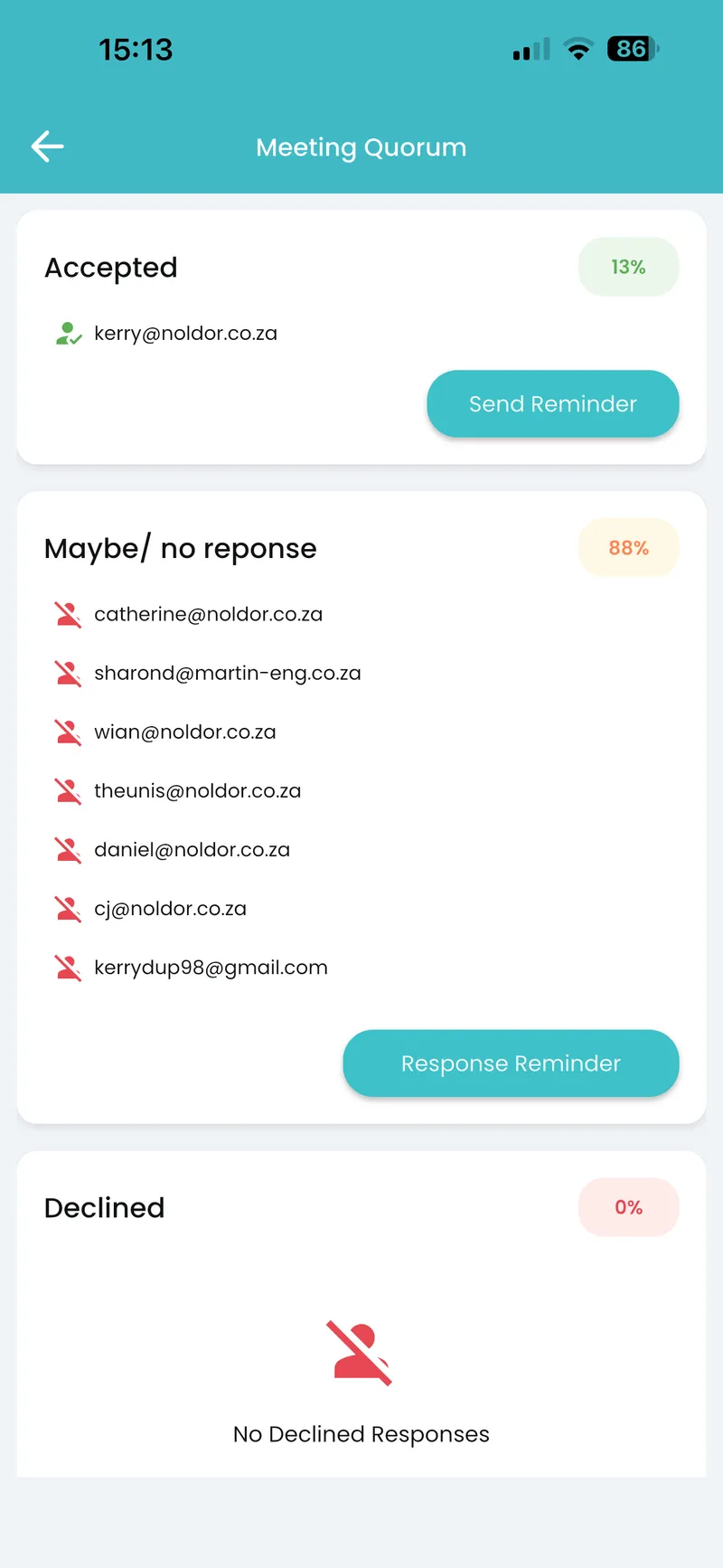
Meeting Quorum - Response Categories
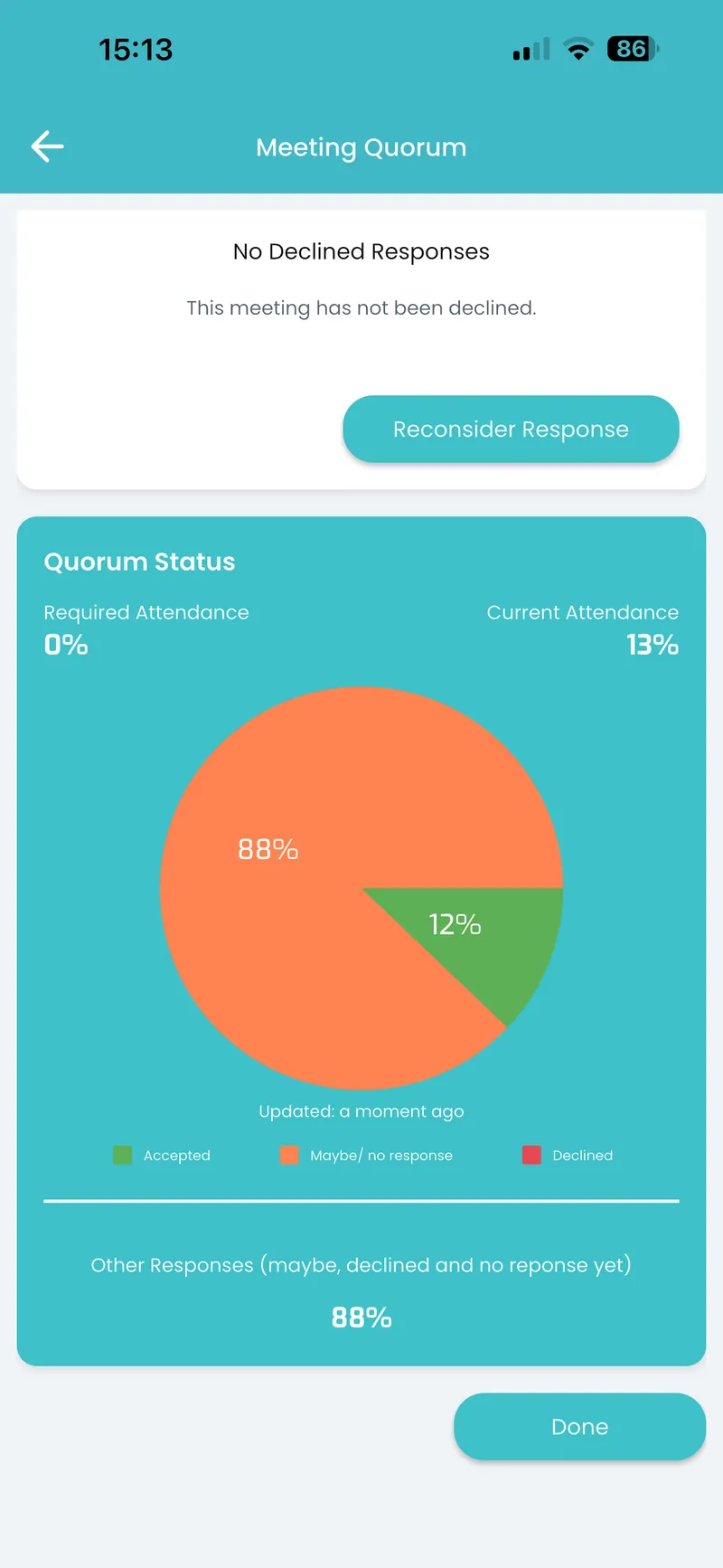
Meeting Quorum - Status Overview