How to Use
Complete guide to mastering the Meeting Assistant Tool. Follow our step-by-step instructions to make the most of every feature.
Available on Android, iOS, Huawei, and as the Web App in your browser
Step 1 of 10
Getting Started
Welcome to MAT! Get the app or open the Web App, and create your account.
Get MAT
From 3 November 2026, meetings are priced in credits (1 credit = R1). Every account starts with 500 free credits.
Use MAT in your browser, or install the app on your phone from one of three stores.
Web App:
- Open app.meetingtool.online in your browser, on a computer or a phone
- Register or sign in (see below), with nothing to install
Android:
- Open Google Play Store on your Android device
- Search for "Meeting Assistant Tool" or open the Google Play listing
- Tap "Install" to download the app
- Once installed, tap "Open" to launch MAT
iOS (Apple):
- Open the App Store on your iPhone or iPad
- Search for "Meeting Assistant Tool" or open the App Store listing
- Tap "Get" or the download icon
- Once installed, tap "Open" to launch MAT
Huawei:
- Open AppGallery on your Huawei device
- Search for "Meeting Assistant Tool" or open the AppGallery listing
- Tap "Install" to download the app
- Once installed, tap "Open" to launch MAT
Creating Your Account
Option 1: Email Registration
- On the Sign In screen, tap the "Register" tab
- Enter your first name (required)
- Enter your last name (required)
- Enter your email address (required)
- Create a password (required) - use the eye icon to toggle visibility
- Confirm your password (required)
- Check the box to agree to MAT's privacy policy and terms of service
- Tap "Register" to create your account
- Open the verification email MAT sends you and tap the link, then sign in. MAT lets you in once your email address is verified
Option 2: Social Login
- On the Register screen, scroll to the "Social login" section
- Tap the Google button (Android and the Web App) or the Apple button (iPhone and the Web App)
- Follow the prompts to sign in with your Google account or Apple ID
On a Huawei device, register with your email address (Option 1).
Signing In
- Open the MAT app, or the Web App in your browser
- Enter your email address in the "Enter email address" field
- Enter your password in the "Enter password" field
- Use the eye icon to toggle password visibility if needed
- Tap "Sign in" to access your account
Forgot Password?
- Tap "Forgot my Password" on the Sign In screen
- Follow the instructions sent to your email to reset your password
Understanding the Main Dashboard
After signing in, you'll see the "Meetings" screen:
- Search Bar: Use this to quickly find specific meetings
- Record now: Starts a meeting and the recording in one tap, for any meeting or event
- View Past Meetings: Tap this button to see completed meetings; starred and archived meetings have their own lists
- Meeting Cards: Each card shows:
- Meeting title
- Description
- Organiser
- Date and time
- Quorum percentage (when a quorum is set)
- Meeting status (Scheduled, In Progress, etc.)
- Floating Action Button: The circular button with a "+" icon in the bottom right lets you create a new meeting
- Notifications: The bell icon in the top right shows pending notifications (red badge indicates count)
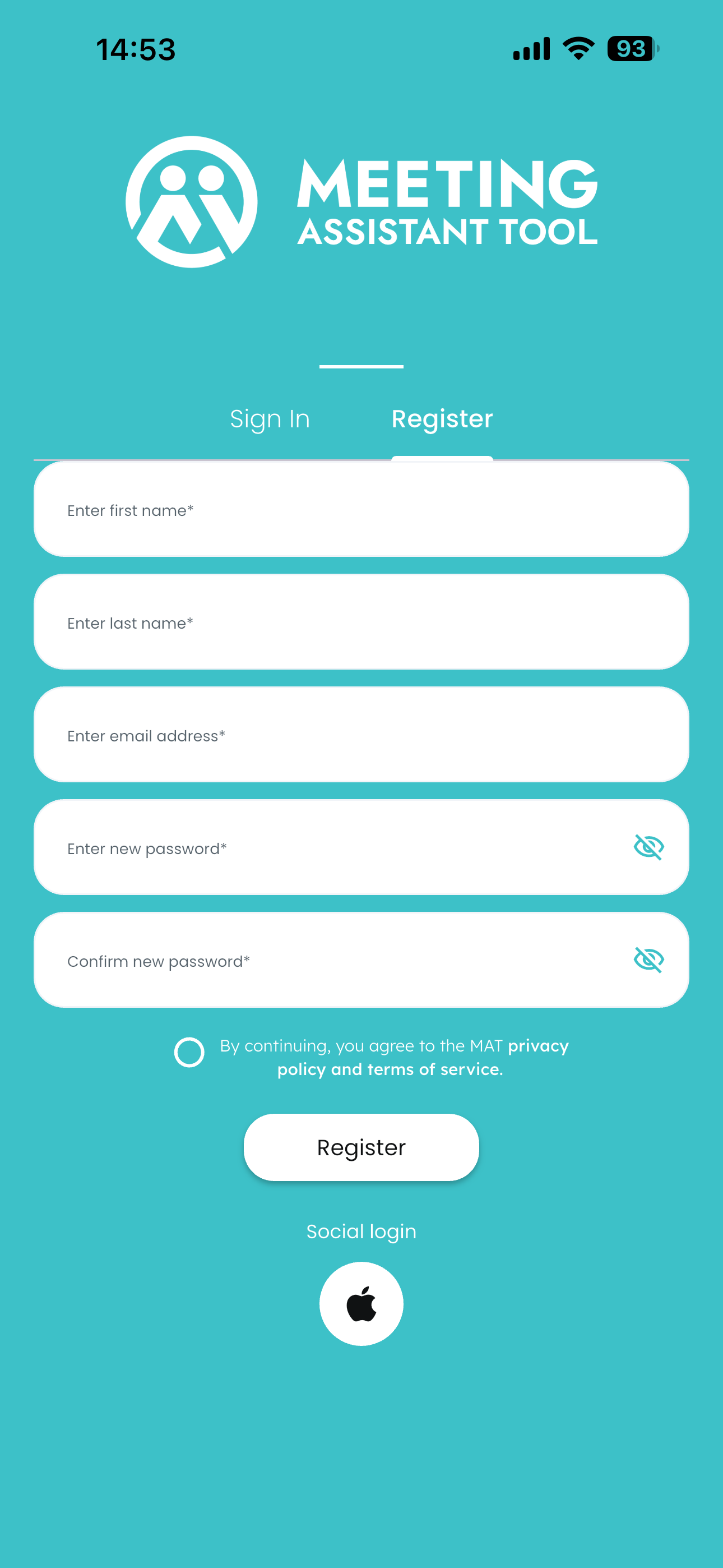
Register Screen
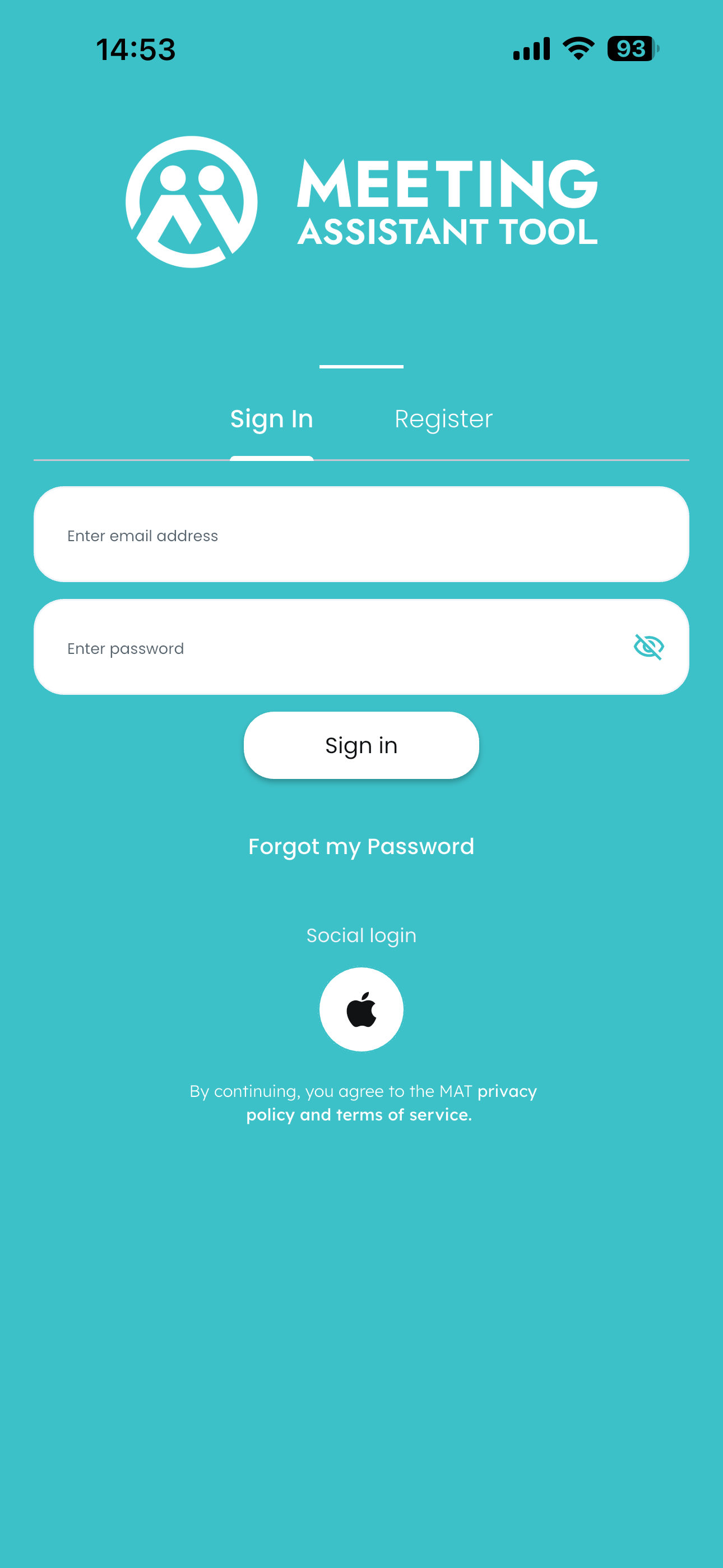
Sign In Screen
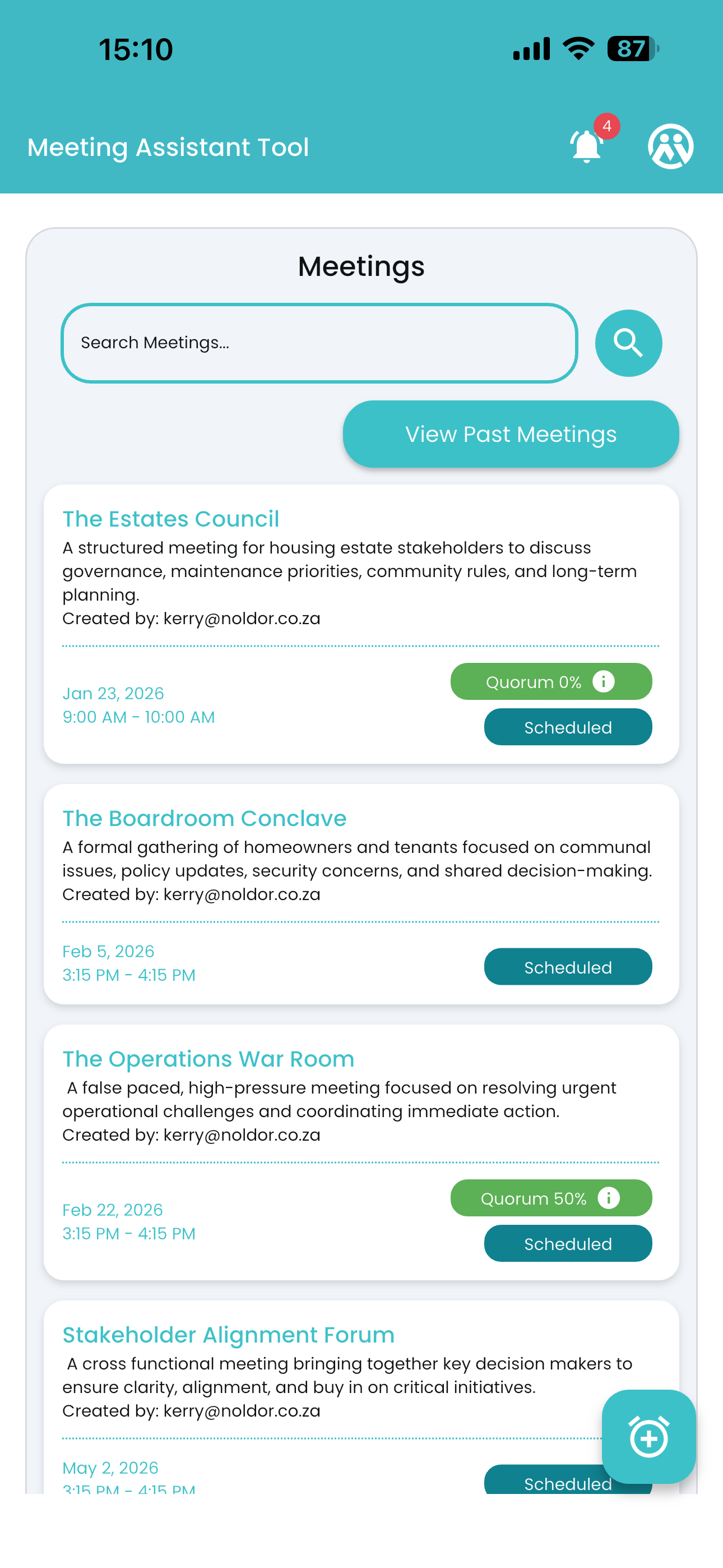
Meetings Screen